 Copy YouTube Transcript
The quick answer: Open a Short in desktop Chrome, open Copy YouTube Transcript and select Copy to Clipboard. The extension copies the available captions. It does not generate new captions from the audio.
How to copy a YouTube Shorts transcript
- Install Copy YouTube Transcript from the Chrome Web Store. Basic copying is free. Open it from Chrome’s Extensions menu; pin it if you use it often.
- Open the Short on youtube.com in a desktop Chrome tab. Wait for the video to load, especially if you have just moved to a different Short.
- Click the extension icon. If you want plain text, open its formatting options and turn off Show timestamps.
- Select Copy to Clipboard, then paste into your document with Ctrl+V on Windows or Command+V on Mac.
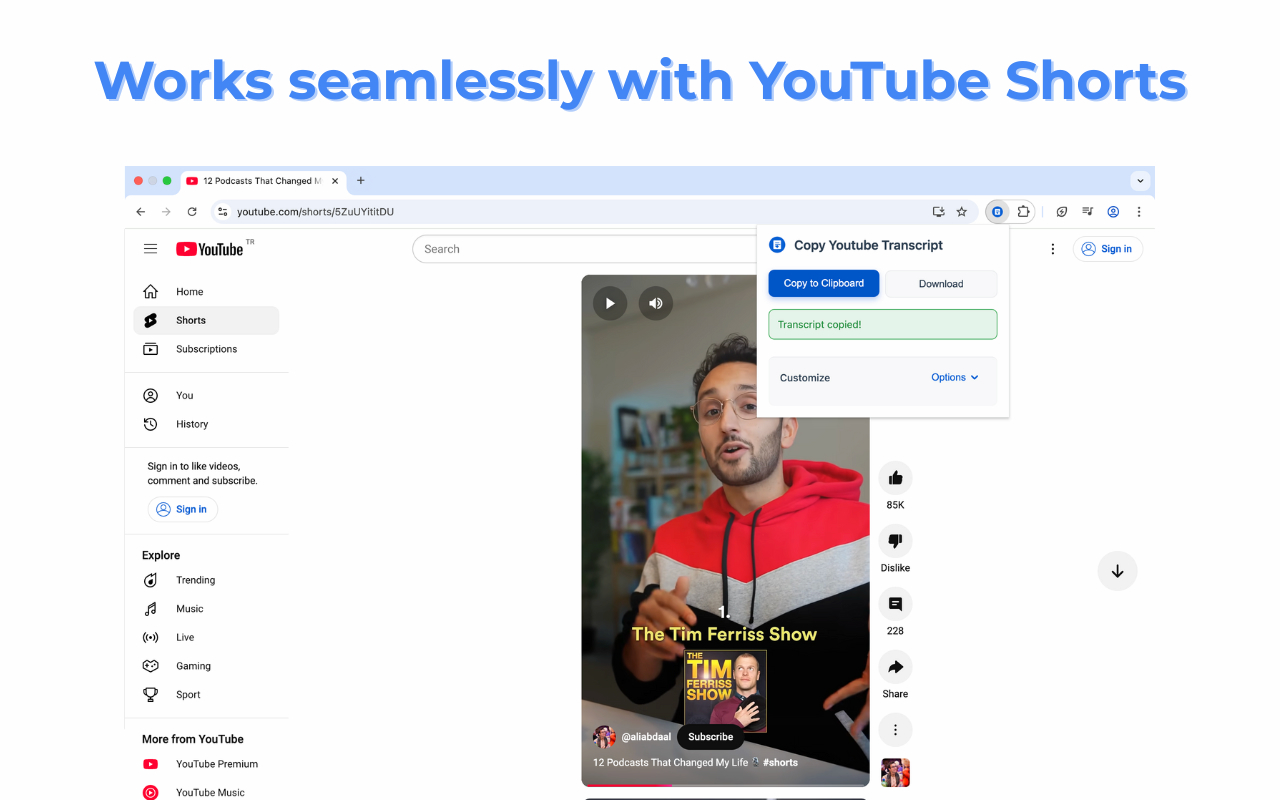
You do not need to download the video or upload its audio. The extension reads a transcript that is already available on YouTube.
What if the Short has no transcript?
A missing transcript button in YouTube’s interface does not, by itself, tell you whether captions exist. YouTube’s layout can vary. Try the extension on the loaded Short and check its result.
- Check for captions. If the video has no available caption track, the extension cannot extract one.
- Reload after navigating. If the extension shows the previous Short or an error, refresh the current tab and try again.
- Check access. Make sure you can play the video and have allowed the extension to run on YouTube.
- Try another captioned video. If that works, the issue may be specific to the original Short. For a recent upload, you can check again later; captions are not guaranteed to become available.
For ordinary videos, YouTube documents a Show transcript option in the video description when captions are available. See YouTube’s transcript instructions. If no captions exist, you need a separate speech-to-text service; this extension does not provide that function.
Choose the output you need
Keep timestamps when you want to find a quote in the video later. Turn them off for a clean paragraph or notes. Copying captions preserves their wording, including any mistakes in automatically generated captions—check names and quotations against the video.
For formatting examples, see copying transcripts without timestamps. To work with the text in an AI chat, follow our ChatGPT and Claude transcript guide.
Common questions
Does this work in the YouTube mobile app?
This guide is for the Chrome extension on a desktop or laptop. The extension does not run inside the YouTube app on iPhone or Android.
Is copying Shorts transcripts free?
Basic copying, timestamp formatting and limited AI side-panel use are free. Pro adds PDF/Markdown export and higher AI usage.
Does it translate a Short?
Copying a caption track and translating its text are different tasks. Basic copying does not automatically translate the transcript. Choose the available caption language you need, or use a translation tool afterwards.
Keep working with your transcript
- Download a YouTube Transcript as a Text File (Free)
- How to Find a Word or Quote in a YouTube Video
- YouTube Transcript Not Showing? What to Check
Copy the next transcript in one click
Get captions into your notes with the formatting you choose.
Add to Chrome — free copyingDesktop Chrome · Requires available captions · Optional Pro features