 Copy YouTube Transcript
To copy without timestamps: Open Copy YouTube Transcript, turn off Show timestamps in the formatting options, then select Copy to Clipboard. If you already have the text, use the cleaner below.
Remove timestamps from a copied transcript
Paste plain transcript text—not a video link. This removes timestamps at the start of lines, including 0:15, [0:15] and (0:15), and removes empty lines. Times mentioned inside a sentence are kept.
Free to use. Your text is processed here in your browser, without being uploaded or saved by this tool.
Paste a transcript or try the example.
Review the result before copying: a spoken time written at the start of a line can look like a timestamp. This is a plain-text cleaner, not an SRT/VTT subtitle converter.
Copy clean text directly from YouTube
- Install Copy YouTube Transcript in desktop Chrome, then open a video with available captions.
- Open the extension and expand the formatting options.
- Uncheck Show timestamps. You can also choose whether to include the video title and spacing between lines.
- Select Copy to Clipboard, then paste into your notes or document.
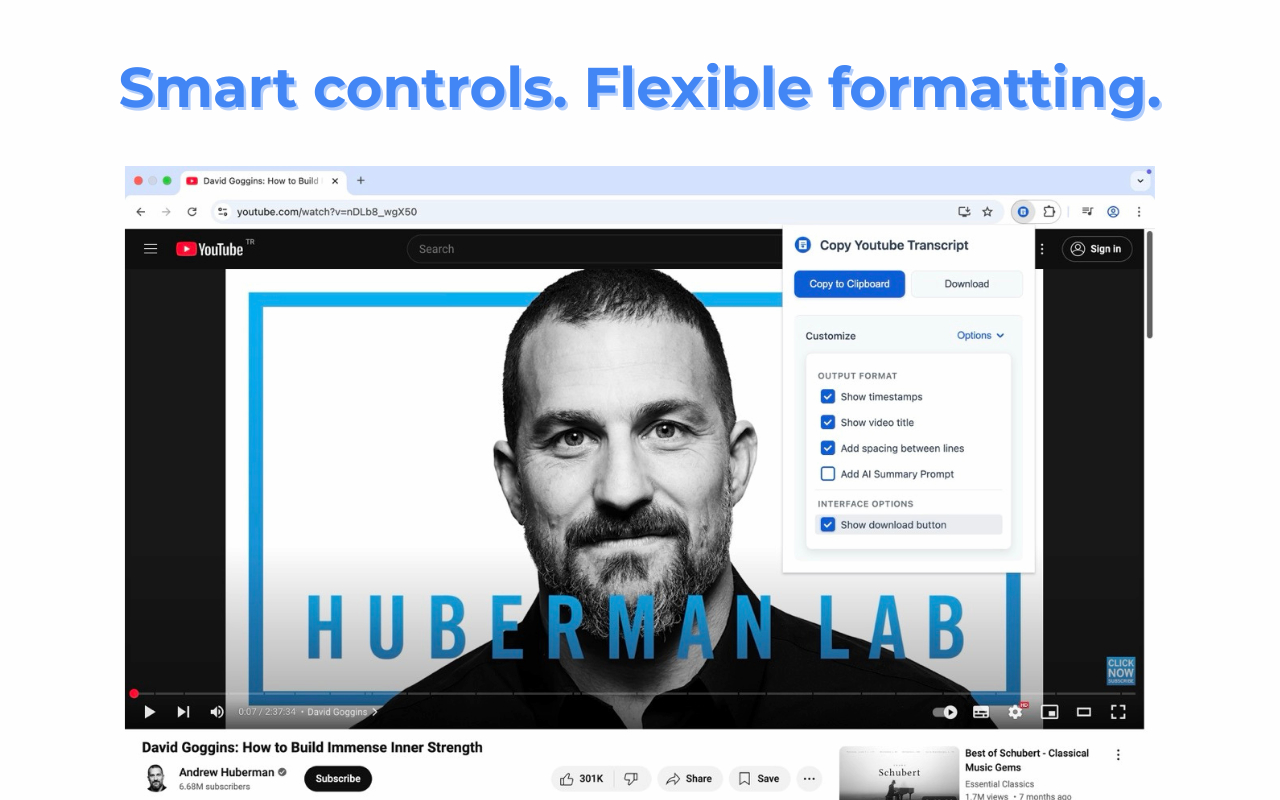
These formatting controls are part of the free extension. PDF/Markdown export and the AI side panel are optional Pro features. The extension needs available YouTube captions; it does not transcribe audio when captions are missing.
Can I copy a transcript without an extension?
Yes. For a captioned video, open its description and look for Show transcript. Select and copy the text from the transcript panel. If your version of the panel offers a timestamp toggle, turn it off first. Otherwise, paste the copied text into the cleaner above.
YouTube explains how to open the transcript in its official help article. Its interface can change, so the extension is useful when you want the same copying and formatting controls across repeated tasks.
When should I keep timestamps?
Remove them when you want text for reading, editing or summarizing. Keep them when you need to cite a specific moment, check a quotation, or ask an AI assistant for references back to the video. Removing the labels does not correct caption errors or rewrite the speaker’s words.
Working with a Short? See how to copy a YouTube Shorts transcript. For summaries and study notes, try the workflow and prompts in our AI transcript guide.
Copy the next transcript in one click
Get captions into your notes with the formatting you choose.
Add to Chrome — free copyingDesktop Chrome · Requires available captions · Optional Pro features