 Copy YouTube Transcript
Quick answer: In Copy YouTube Transcript, open a captioned video, choose your formatting, then use Export → Text to save a .txt file. If Export is hidden, enable Show Export button in the extension’s settings. You can also copy YouTube’s transcript manually and save it in a text editor.
Download a transcript as a TXT file
Use this when you want a local copy of a lecture, interview or tutorial. You need desktop Chrome and a video with available captions. The extension copies those captions; it does not download the video or generate speech-to-text from its audio.
- Install Copy YouTube Transcript, then open the video on YouTube.
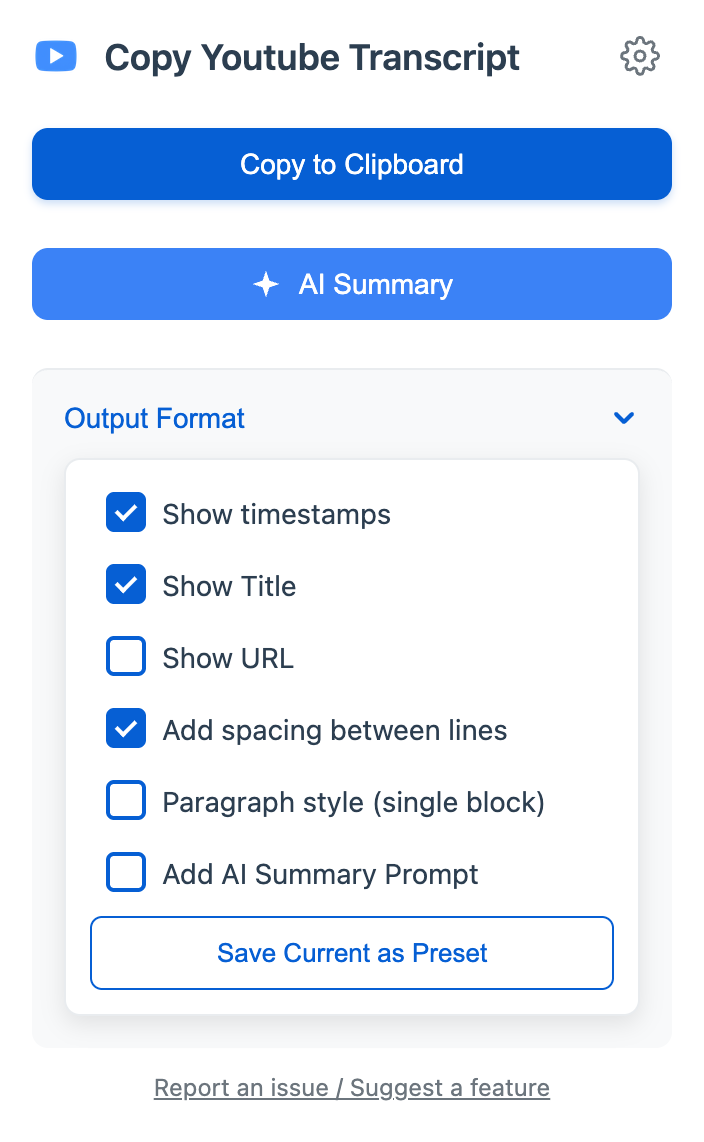
- Open the extension from Chrome’s extensions menu. Expand Output Format to choose what the file includes.
- If you cannot see an export control, open the extension’s Settings, enable Show Export button, then close settings.
- Select Export. Once the transcript is ready, choose Text in the format options.
- Open the downloaded
.txtfile. The filename is based on the video title. Check Chrome’s downloads list if you do not see it in your usual download folder.
Text export is part of the free core features. You do not need to buy Pro or use an AI service to save a TXT file. If the video has no available transcript, start with the missing-transcript checks before trying to export again.
Choose what goes into the file
Pick settings for the task you will do next. A readable document for study and a transcript for locating exact moments benefit from different formatting.
| Your task | What to keep |
|---|---|
| Find a quote later | Timestamps, title and source URL |
| Read or annotate the text | Title and URL; remove timestamps if they interrupt reading |
| Use an AI chat | Timestamps for source references; only add a prompt if you want one included |
Under Output Format, use Show timestamps, Show Title and Show URL to control those fields. Check the prompt option too: if you previously enabled a custom AI prompt, turn it off when you want only the transcript.
Already have a file with unwanted time labels? Paste its text into the free timestamp cleaner, review the result, then save a separate clean copy.
Save a transcript without an extension
For a one-off task, YouTube’s built-in transcript can be enough. In the video description, select Show transcript, select the caption text and copy it. YouTube documents this entry point in its transcript help.
Paste into a plain-text editor and save with a .txt extension. If your editor defaults to rich text, switch it to plain text first. Add the video title and URL yourself so you can find the source again. Compare the beginning and end with the transcript panel to check that your selection included everything you intended.
Is TXT the same as PDF, Markdown or SRT?
TXT is plain text. It is a useful default for searching, copying into notes and moving between editors. It does not preserve page layout, fonts or rich document formatting.
PDF is useful when you want a document layout, while Markdown works with note-taking tools that understand that format. The extension’s direct PDF and Markdown exports are Pro features. Saving TXT does not require them.
SRT and VTT are timed subtitle formats. A TXT transcript with visible timestamps is not an SRT or VTT file, and renaming it will not convert it. If you manage the video and need an editable caption file, use YouTube Studio’s caption download workflow. The extension instructions here are for a reading copy.
Check the saved file before using it
- Correct video: check the title and source link, especially if several tabs were open.
- Expected content: inspect the first and last passages. A saved transcript only contains the captions that were available.
- Important wording: listen again to names, numbers and quotations before relying on them.
- A useful filename: add a topic or date if the original title will be hard to recognize later.
Once saved, the text file can be read without loading YouTube. That does not mean retrieving a new transcript works offline. For your next step, see how to find a word or quote or how to use the transcript with an AI chat.
Save the next transcript as text
Copying, formatting and TXT export are free. PDF and Markdown export are optional Pro features.
Add to Chrome for free copyingDesktop Chrome · Requires available captions · Optional Pro features