 DeepSeek Toolbox
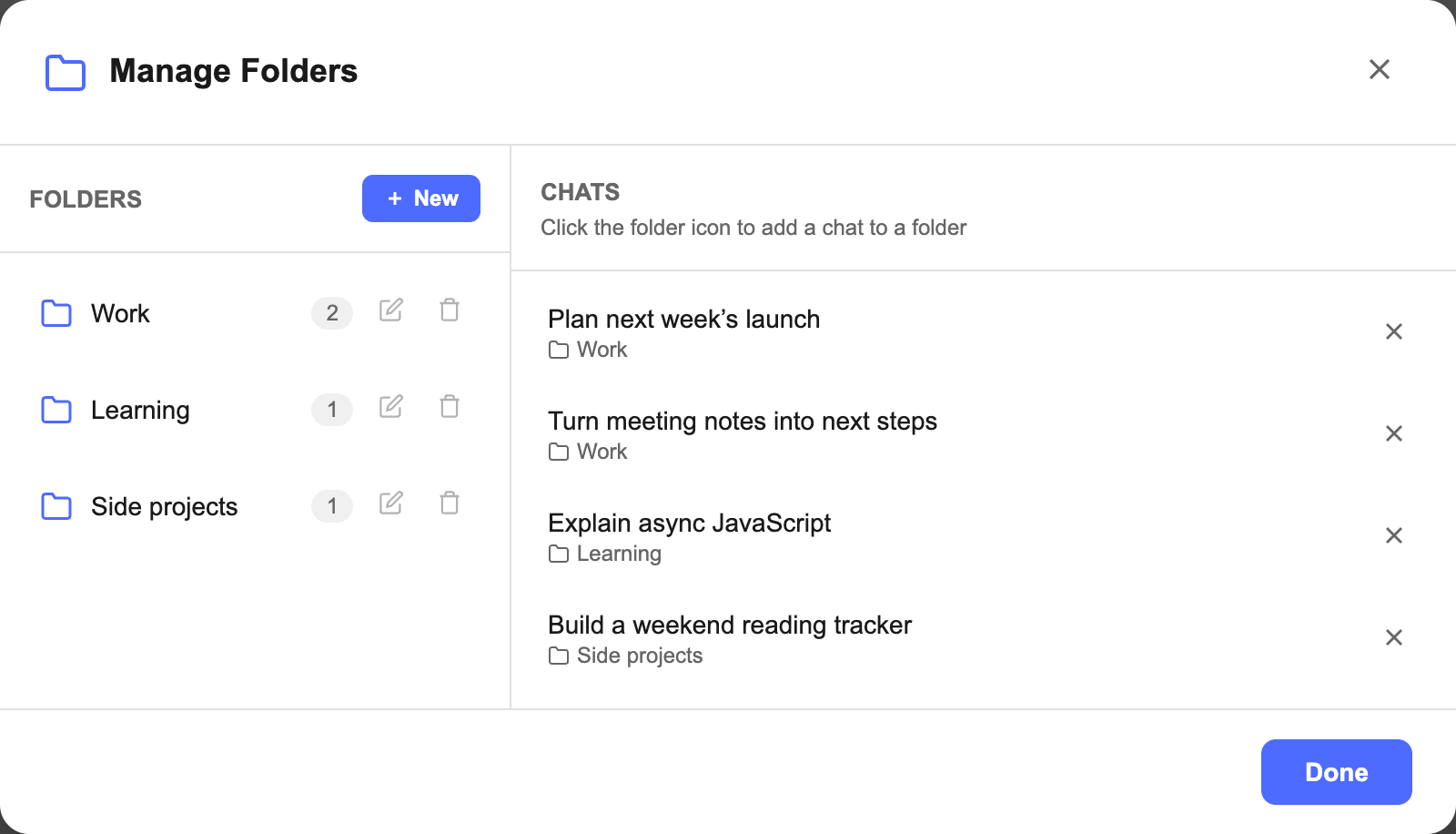
Quick answer: Install DeepSeek Toolbox, open DeepSeek Chat, then choose DS-Toolbox → Manage Folders → New. Name your folder, select OK, and use the folder icon beside a conversation to add it. Click the folder name to see its chats.
Create your first DeepSeek folder
A long chat history is easier to navigate when each project has a home. DeepSeek Toolbox adds a folder manager inside DeepSeek’s desktop website, so you can group a coding project, a course or a research topic without copying conversations into a separate app.
- Install DeepSeek Toolbox from the Chrome Web Store. The listing is named DeepSeek Folders, Prompt Library & Export.
- Open DeepSeek Chat and sign in. If the site was already open when you installed the extension, refresh the tab.
- Open DS-Toolbox in the sidebar and choose Manage Folders.
- Select New, enter a short folder name such as Website redesign, and select OK.
- In the chats panel, find a conversation you want to organize. Select its Add to folder icon and choose your new folder.
- Select the folder name on the left to filter the list. Click a conversation title to reopen it.
Start with two or three conversations. Once the structure feels useful, add more. The current folder tools are free and do not need a DeepSeek API key.
Choose folders you will actually use
Name folders after the reason you will return to a chat. A specific project name is often more useful than a broad label like “Interesting.” You do not need a complex filing system for every question you ask.
| What you use DeepSeek for | Example folders |
|---|---|
| Development | Website redesign, API debugging, Learning Python |
| Study | Biology revision, Essay research, Practice questions |
| Writing and work | Newsletter drafts, Product launch, Meeting follow-ups |
For a project with several conversations, use one folder and give each chat a recognizable title in DeepSeek. The folder helps you find the project; the title helps you choose the right conversation.
Move chats, rename folders and remove clutter
To move a chat: select Remove from folder beside the conversation, then use its folder icon to assign it to another folder. Each chat has one folder assignment at a time.
To rename a folder: use the pencil icon beside its name, enter the new name, and confirm. Your chat assignments stay with the folder.
To delete a folder: use its trash icon and review the confirmation. Deleting the folder removes the organization, not the conversations inside it. Removing a chat from a folder also leaves the conversation in DeepSeek.
Deleting conversations is a separate action under Bulk Delete. Keep that distinction in mind when you only want to reorganize your list.
What if a conversation is missing?
The folder manager reads the chat entries currently loaded in DeepSeek’s sidebar. If an older conversation is missing, close the manager, scroll the sidebar to load that conversation, then reopen Manage Folders. Also check whether you selected a folder that filters it out.
If DS-Toolbox itself is missing, check that the extension is enabled in Chrome and allowed to run on chat.deepseek.com. Refresh the page after installation or an update. These instructions apply to the desktop website, not DeepSeek’s mobile app.
DeepSeek can change its interface. If the sidebar is loaded but the manager still cannot find chats, report the issue through the extension’s support link with your browser version and the steps you tried.
Do folders give DeepSeek shared project context?
No. These folders organize your chat list. Putting two conversations in the same folder does not merge them, share their messages with each other or make DeepSeek remember the entire folder in a new chat.
When you need to continue work in a new conversation, bring over the relevant brief or excerpts yourself. If you want a saved copy for your notes, follow the DeepSeek export guide.
Will folders sync to another computer?
Folder names and chat assignments are saved in the extension’s local browser storage. They are not cloud-synced across computers or browser profiles. Removing the extension can remove that organization, even though your actual conversations remain in your DeepSeek account.
Folders are a way to navigate your history, not a backup of its contents. Export important conversations separately when you need files you can keep outside DeepSeek. See the privacy details for local storage and optional online features.
Organize your next DeepSeek project
Create folders, save prompts and pin useful replies in one free extension.
Add DeepSeek Toolbox to ChromeFree and open source · Desktop Chrome
More details: DeepSeek Toolbox features · Source and documentation