 DeepSeek Toolbox
Quick answer: Open the conversation in DeepSeek, then choose DS-Toolbox → Chat Export. Select Markdown or Text to download a file. Select PDF to open a print view, then choose a PDF destination in your browser or system print dialog.
Open the conversation you want to save
Use an export when you want to keep research notes, review an explanation later, or move a conversation into your own documents. DeepSeek Toolbox offers PDF, Markdown, plain text, HTML and JSON from the same export menu.
- Install DeepSeek Toolbox. Its Chrome Web Store listing is named DeepSeek Folders, Prompt Library & Export.
- Open DeepSeek Chat in desktop Chrome and select the conversation. Refresh an already-open tab after installing the extension.
- Wait for the response to finish. Review the beginning and end of the conversation, especially if it is long.
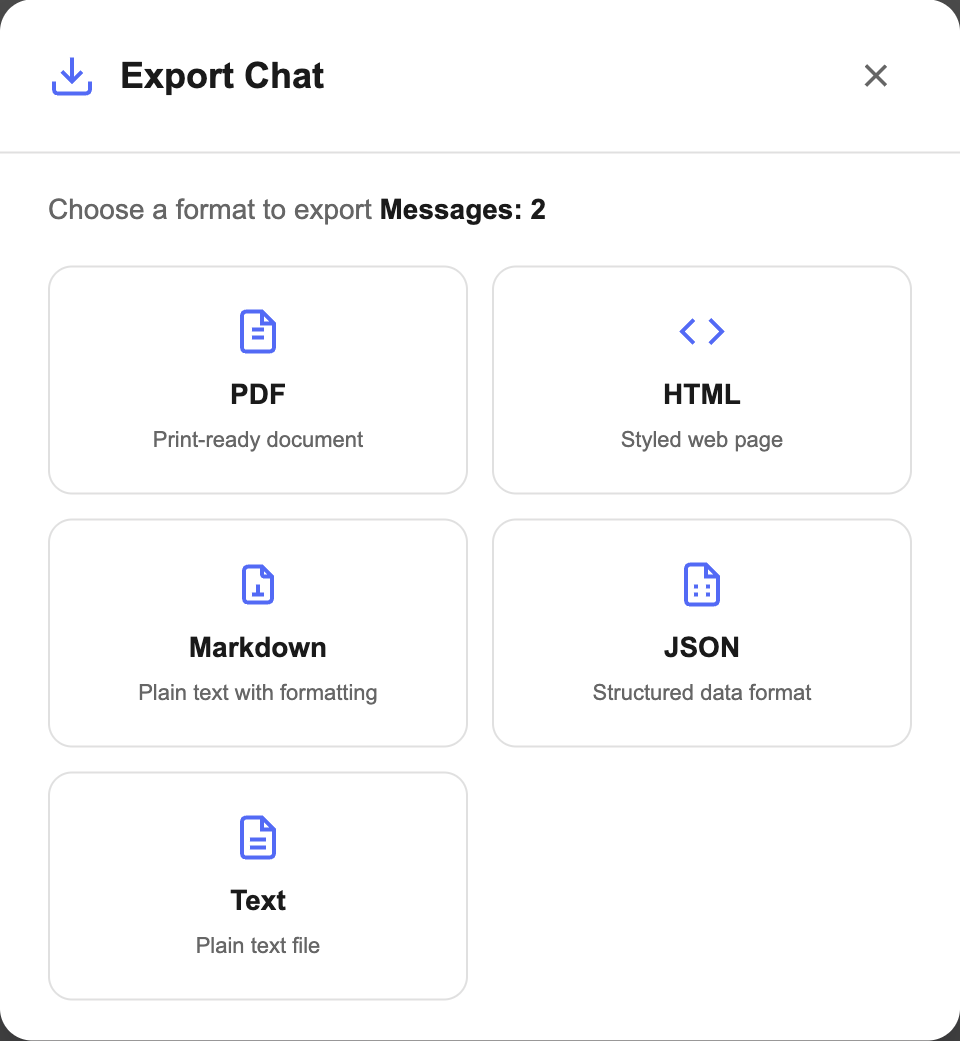
- Select DS-Toolbox → Chat Export. The Export Chat window shows a detected message count and the available formats.
- Choose the format for your next task using the steps below.
The export tools are currently free. You do not need a DeepSeek API key or the optional AI prompt enhancer to save a conversation.
Save a DeepSeek chat as PDF
Select PDF in the export window. The extension opens a formatted print view containing the messages it found, then requests the print dialog.
- In the print dialog, select Save as PDF where available. On macOS, the system print dialog may provide a PDF menu instead.
- Review the preview. Check that the text, tables and code you need are visible, and adjust page settings if necessary.
- Save the file with a recognizable name and open it once to check the result.
PDF export uses the print workflow; it is not an automatic PDF download. If you close the print dialog without saving, you have not created a PDF file. If no print view opens, check whether the browser blocked the new window and allow it for DeepSeek before trying again.
Download a DeepSeek conversation as Markdown
Select Markdown to download a .md file. It includes a conversation heading, an export date, and sections identifying your messages and DeepSeek’s replies. Open it in a text editor or a notes app that reads Markdown.
This is useful when you want to edit the conversation, quote a passage or add your own notes. Check complex tables and code after importing: Markdown is a text format and the saved file may not reproduce every detail of DeepSeek’s on-screen layout.
A filename based on the conversation title and export time helps distinguish repeated exports. Rename it to something you can find later, such as website-redesign-notes.md.
Save as plain text, HTML or JSON
Select Text for a .txt file you can open in almost any editor. It keeps the conversation as readable text with labels for both sides. Choose this when you mostly want to search, copy or annotate the words.
| Format | Useful for |
|---|---|
| Reading, printing or sharing a document with a fixed page layout | |
| Markdown | Editing a conversation in a text-based notes workflow |
| Text | Simple reading, searching and copying between apps |
| HTML | Opening a styled conversation file in a browser |
| JSON | Processing message roles and text with your own scripts |
For Markdown, Text, HTML and JSON, check Chrome’s downloads list if the file is not where you expected. Unlike PDF, these formats download directly instead of going through the print dialog.
Check that the export includes what you need
The extension exports messages loaded in the page. A long conversation can have earlier content unloaded, so an export is not a guaranteed complete archive of every message in the account. The message count reflects what the extension detected, not an independent total from DeepSeek.
- Compare the first and last exchanges in the file with the conversation you intended to save.
- If older content is missing, return to DeepSeek and scroll to load it, then reopen the export window and try again. Page virtualization can still limit what is available at once.
- Check important code, tables and quotations before sharing or relying on the saved file.
- Keep the original conversation until you have verified the export.
If the menu says No Conversation Open, open a chat with visible messages and retry. If the conversation is visible but the count still looks wrong after refreshing, report the compatibility issue rather than treating the file as a complete backup.
Does exporting upload my conversation?
The export operation creates a local download or print view. It does not send the conversation to the Toolbox service. DeepSeek’s normal website traffic still works as usual, and optional prompt enhancement is a separate feature that sends a selected draft to a hosted service.
If you later upload the saved file to another AI tool or share it with someone, that is a separate transfer. See the DeepSeek Toolbox privacy details for the extension’s other requests.
To keep related conversations easy to find before exporting them, see how to organize DeepSeek chats into folders.
Save your next DeepSeek conversation
Choose PDF, Markdown, Text, HTML or JSON with DeepSeek Toolbox.
Add DeepSeek Toolbox to ChromeFree and open source · Desktop Chrome
More details: DeepSeek Toolbox features · Source and documentation