TL;DR
Gemini doesn't have built-in folders, but Toolbox for Gemini adds them. Install the free Chrome extension, create folders, and drag your chats to organize them. Takes 2 minutes to set up.
The Problem: Gemini's Messy Sidebar
If you've been using Google Gemini for more than a few weeks, you've probably noticed the problem: your sidebar is a mess. Conversations pile up in chronological order with no way to organize them.
😫 Without Folders
- Hundreds of chats in one long list
- Can't find old conversations
- Work and personal mixed together
- Scrolling forever to find anything
✨ With Folders
- Chats organized by project/topic
- Find any conversation instantly
- Work and personal separated
- Clean, professional workspace
Google hasn't added native folder support to Gemini (as of January 2026). But there's a simple solution: Toolbox for Gemini, a free Chrome extension that adds the organization features Gemini is missing.
Step-by-Step: Set Up Folders in Gemini
Step 1: Install Toolbox for Gemini
Go to the Chrome Web Store and click "Add to Chrome". Installation takes about 30 seconds.
The extension only requests access to gemini.google.com - it can't see any other websites.
Step 2: Create Your First Folder
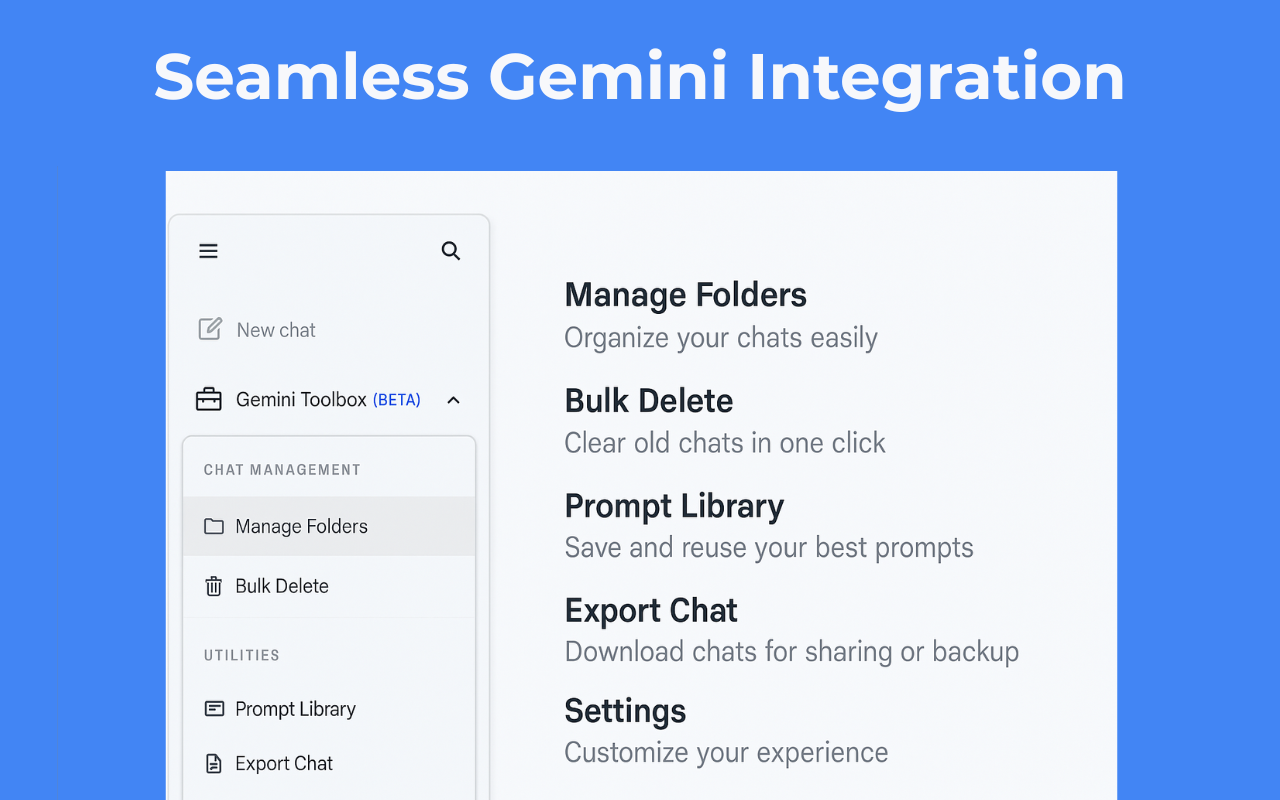
Open gemini.google.com. You'll see a new "Folders" section added by Toolbox. Click the + icon to create your first folder.
Name it something meaningful - "Work Projects", "Research", "Personal", etc.
Step 3: Drag Chats into Folders
Simply drag any conversation from your chat list into a folder. The chat moves instantly - no copying, no duplicates.
You can also right-click a chat and select "Move to Folder" if you prefer.
Step 4: Set Up Your Folder Structure
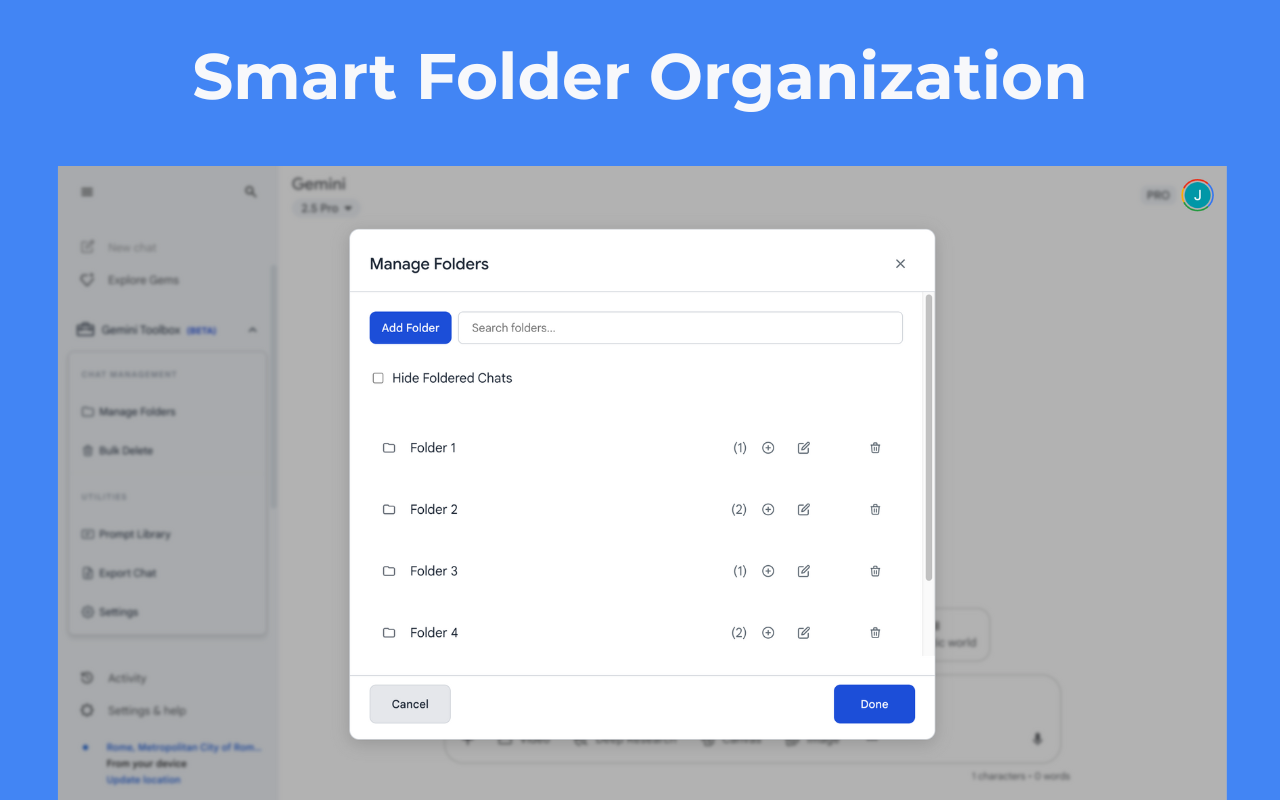
Create folders that match how you actually use Gemini. Here's a suggested structure to get started:
Recommended Folder Structure
- Work - Professional projects and tasks
- Personal - Non-work conversations
- Coding - Programming help and debugging
- Research - Deep dives and learning
- Writing - Content and copywriting
- Archive - Old but important chats
You can create unlimited folders and nest them however you like. The structure saves automatically - it's there every time you open Gemini.
Pro Tips for Staying Organized
1. Create Folders Before Chats
Before starting a new project, create a folder for it. Then every related conversation goes there from the start - no sorting later.
2. Use an "Inbox" Folder
Create an "Inbox" folder for quick, throwaway conversations. Review it weekly and either move chats to permanent folders or delete them.
3. Archive Don't Delete
Instead of deleting old chats, move them to an "Archive" folder. You never know when you'll need that conversation again.
4. Clean Up Regularly
Set a weekly reminder to spend 5 minutes organizing. Use bulk delete to remove chats you definitely don't need.
Other Features You Get
Toolbox for Gemini isn't just folders - it's a complete organization toolkit:
- PDF Export: Save any conversation as a clean PDF document
- Bulk Delete: Select and delete multiple chats at once
- Prompt Library: Save your best prompts for one-click reuse
- Search: Find any conversation by content (coming soon)
All features are free. There's an optional Pro upgrade for power users, but the core organization features work without paying anything.
Ready to Organize Your Gemini?
Join 5,000+ users who've cleaned up their Gemini sidebar with Toolbox.
Install Toolbox for Gemini - Free4.7★ rating • Works instantly • No account required
Frequently Asked Questions
Does Gemini have built-in folders?
No, as of January 2026, Google Gemini doesn't have native folder support. Toolbox for Gemini is currently the only way to organize chats into folders.
Will my folders sync across devices?
Folders are stored locally in your browser. If you use Chrome sync, your extension data will sync too. But they won't appear on mobile (yet).
What happens if I uninstall the extension?
Your Gemini chats are safe - they're stored by Google, not the extension. You'll just lose the folder organization until you reinstall.
Is it safe?
Yes. The extension only accesses gemini.google.com, processes everything locally in your browser, and never sends data to external servers. It has 5,000+ users and a 4.7★ rating.
Not affiliated with or endorsed by Google LLC. "Gemini" is a trademark of Google.